
How to secure a home Wi-Fi router: a practical hardening checklist
Secure your router in a sensible order: confirm update support, protect administration, choose modern Wi-Fi encryption, separate guests, and prepare a recovery plan.
Security and resilience editorial team · Source-reviewed editorial guidance based on standards and public-agency publications; no certification or laboratory testing is claimed.
Quick answer
Update your router, replace default administrator credentials, and use WPA3 Personal where your devices support it, or WPA2 Personal for compatibility. Set a separate strong Wi-Fi password, disable internet-facing administration and unnecessary connection features, enable the firewall, and isolate guests. Verify the settings after restarting, and replace equipment that no longer receives security updates.
Key takeaways
- Router administration and Wi-Fi access are separate security boundaries: give each a different password.
- Check firmware support before spending time configuring an obsolete router.
- Prefer WPA3 Personal; use WPA2 Personal when compatibility requires it, and retire WEP or original WPA.
- A guest network needs verified isolation, not merely a different network name.
- Keep a recovery record and investigate unexplained configuration changes without assuming every connection problem is an attack.
1. Identify your router and confirm that it still receives updates
Start router hardening by checking the exact model, hardware revision, installed firmware and manufacturer support status. Install the appropriate supported update before changing other settings. If security support has ended, plan a replacement: a stronger password cannot repair an unpatched software vulnerability.
The FBI recommends replacing end-of-life routers where possible and applying available firmware patches. Its warning concerns vulnerable devices used as criminal traffic relays; it does not mean every older router is infected. Use the support status of your exact model as the decision criterion. [FBI router advisory](https://www.ic3.gov/PSA/2025/PSA250507).
Prepare a short maintenance record before starting. Write down the model and hardware revision from the label, the installed firmware version from the administration page, and whether the router belongs to your internet provider. Find the official manual and support page yourself. Avoid choosing a firmware download simply because its filename resembles your router name.
For provider-supplied equipment, ask who installs security updates and whether customers can check their completion. Also ask what settings a reset would erase and whether telephone or television service depends on the device. Schedule changes when nobody needs an uninterrupted call, upload or medical appointment.
Our suggested working order is preparation, update, administrator protection, wireless settings, then isolation and verification. Keep the manufacturer's reset instructions available separately. If you cannot confirm support, record that uncertainty and ask the manufacturer or provider; do not interpret an empty update screen as proof that support continues.
- • Record the model, hardware revision, firmware version and support contact.
- • Follow the official update procedure and avoid interrupting its power supply.
- • After updating, sign in again and confirm the installed version.
- • Enable automatic updates if offered; otherwise set a recurring reminder to check.
- • Replace equipment when security support ends or modern encryption remains unavailable.
Sources for this section: FBI Internet Crime Complaint Center: Cyber Criminal Proxy Services Exploiting End of Life Routers, Federal Trade Commission: How To Secure Your Home Wi-Fi Network, National Institute of Standards and Technology: SP 800-153: Guidelines for Securing Wireless Local Area Networks (WLANs)
2. Protect the administrator account and supporting accounts
Give the router administrator account a unique password that differs from the Wi-Fi password, and change the default username where supported. Manage the router through the documented local interface and disable administration from the internet. Protect any associated provider or cloud account using its strongest supported authentication.
The administrator password controls configuration; the Wi-Fi password admits devices to the wireless network. The FTC explicitly distinguishes them. Share the guest Wi-Fi credential with visitors rather than giving them administrative access. Find the management address in the official instructions or your device's network settings instead of assuming that every router uses the same address. [FTC home Wi-Fi guidance](https://consumer.ftc.gov/articles/how-secure-your-home-wi-fi-network).
Save the administrator credential in your password manager and test it by signing out and signing back in. Before changing a username, check whether the interface actually permits it. If the username is fixed, concentrate on the password and access restrictions. Do not reuse the credential for email, shopping or the provider's customer portal.
Review local administration, internet-facing remote administration and cloud management separately. Their names and relationships differ across products. Read the explanation beside each setting, record the previous state, apply the change, and verify that you can still manage the router locally. Ask the ISP before disabling a provider-specific service whose purpose is unclear.
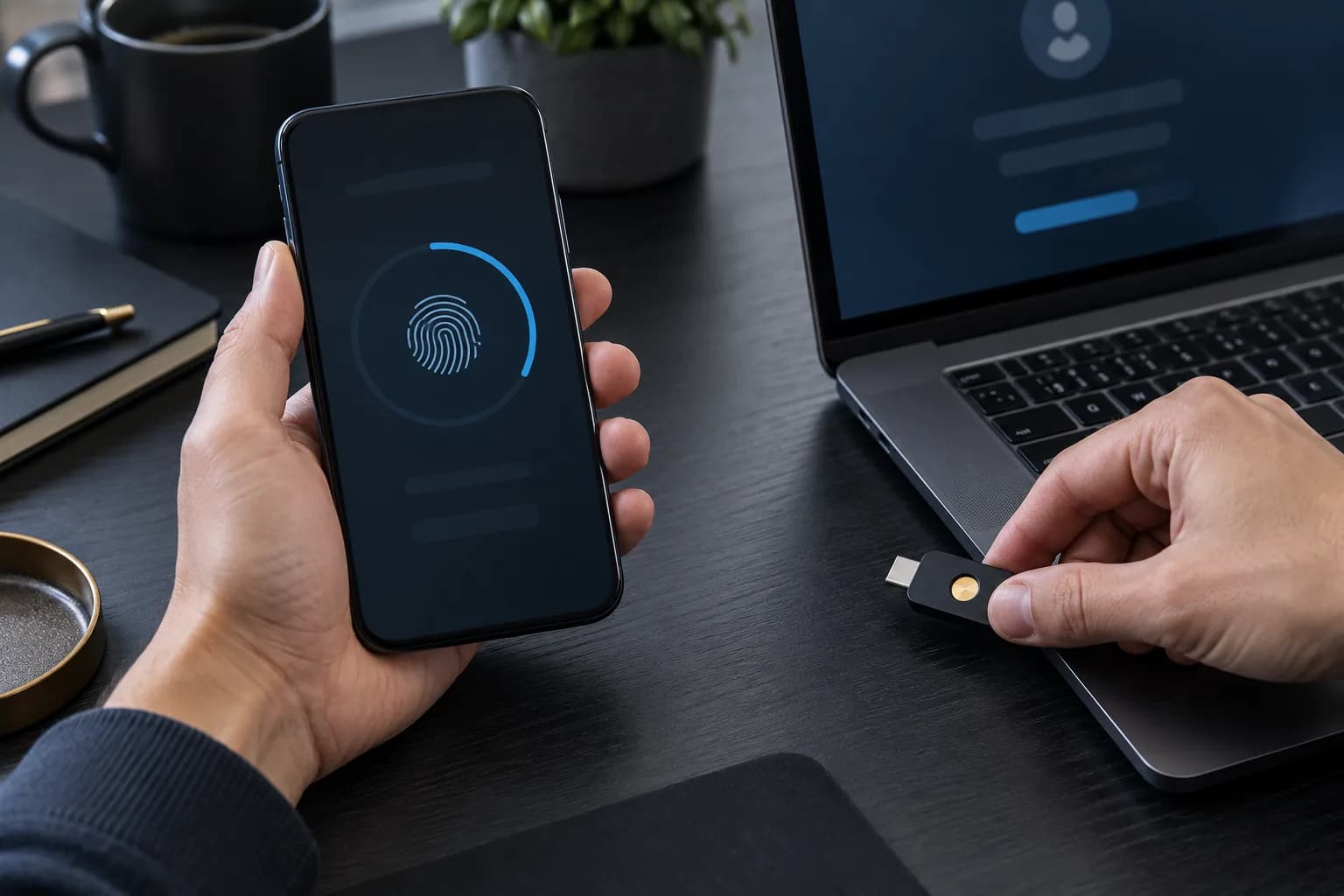
FIDO passkeys offer phishing-resistant authentication and can reside on phones, computers or hardware security keys. If the associated account supports these methods, consider them and test its recovery route. This is an optional account-protection layer, not a claim that your router accepts a security key. Our linked passkey guide explains the choices. [FIDO passkeys](https://fidoalliance.org/passkeys/).
- • Use different passwords for administration, primary Wi-Fi and guest Wi-Fi.
- • Disable remote administration from the internet and save the change.
- • Test local access again before closing your maintenance session.
- • Protect recovery email and compatible provider accounts; keep recovery instructions accessible.
- • Sign out of the administrator interface when finished.
Sources for this section: Federal Trade Commission: How To Secure Your Home Wi-Fi Network, FBI Internet Crime Complaint Center: Cyber Criminal Proxy Services Exploiting End of Life Routers, FIDO Alliance: Passkeys
3. Choose Wi-Fi encryption and reconnect devices deliberately
Use WPA3 Personal when the router and household devices support it. WPA2 Personal is the compatibility alternative identified by the FTC. Avoid WEP and original WPA. Give the wireless network a unique strong password, then reconnect and test devices individually so that compatibility problems are easy to identify.
The FTC recommends WPA3 Personal or WPA2 Personal and advises updating or replacing routers that offer only obsolete alternatives. Use the comparison below as a selection guide, then check the manufacturer's documentation for the exact option names. A menu label alone does not tell you whether every older appliance will connect. [FTC encryption advice](https://consumer.ftc.gov/articles/how-secure-your-home-wi-fi-network).
Inventory the devices that matter before applying the change: work laptops, phones, printers, televisions, cameras and household controllers. Our suggested migration method is to update their software where supported, change the router setting, then reconnect one category at a time. Record any device that fails and the manufacturer's stated encryption support.
Choose a network name that does not reveal your surname, address or router brand. Keep the Wi-Fi password separate from administration credentials and enter it only on devices you intend to admit. Store the credential securely rather than leaving an administrator screenshot in a shared photo album. When giving access to visitors, use the guest credential.
If an essential device cannot use your preferred mode, document the exception and review whether a separate supported network is possible. Do not immediately weaken every household device's connection to accommodate one accessory. After reconnecting, test actual tasks such as printing and camera viewing; successful internet browsing alone does not establish that the whole household setup still works.
- • Prefer WPA3 Personal when all necessary devices are compatible.
- • Use WPA2 Personal when required by supported equipment.
- • Treat mixed or transition modes as manufacturer-specific compatibility choices.
- • If only WEP or original WPA remains after updating, replace the router.
- • Retest important household functions after changing encryption or passwords.
| Option | When to choose it | Decision check |
|---|---|---|
| WPA3 Personal | Preferred for compatible household equipment | Check router and client support; test essential devices |
| WPA2 Personal | Compatibility alternative | Keep firmware current and use a unique strong password |
| WPA2/WPA3 transition mode | Only when a documented compatibility need exists | Consult the model's instructions; reassess the exception later |
| WEP or original WPA | Do not use for the household network | Update firmware or replace equipment |
Sources for this section: Federal Trade Commission: How To Secure Your Home Wi-Fi Network, National Institute of Standards and Technology: SP 800-153: Guidelines for Securing Wireless Local Area Networks (WLANs)
4. Separate guests and remove unnecessary access
Create a guest network with its own password, verify that guests cannot reach private devices or router administration, and keep the router firewall enabled. Disable WPS and unnecessary UPnP. Review existing port-forwarding rules individually, retaining only entries with a known purpose and a responsible owner.
The FTC recommends guest networking, disabling WPS and UPnP, and enabling the router firewall. The NSA's home-network announcement also identifies wireless segmentation as a protective measure. Translate those recommendations into checks on your own model rather than assuming that a second network name automatically provides separation. [FTC checklist](https://consumer.ftc.gov/articles/how-secure-your-home-wi-fi-network), [NSA home-network announcement](https://www.nsa.gov/Press-Room/News-Highlights/Article/Article/3304674/nsa-releases-best-practices-for-securing-your-home-network/).
Look for controls described as guest isolation, local-network access or intranet access. Read the manual's explanation and choose settings that prevent guest access to the private network. Our suggested verification is to connect your own phone as a guest and attempt to open the router administration page and a known private resource. Test only equipment you own.
A failed test is useful evidence but does not prove comprehensive isolation. Check the documented scope, including wireless and wired private devices. For smart-home equipment, decide what must communicate locally before moving it. A controller that needs a local printer, speaker or hub may require a different arrangement; write down the exception rather than opening broad access without a reason.
Apply exposure-reducing changes one at a time. After disabling UPnP, test the household applications that previously depended on automatic connectivity. If something fails, consult its official instructions before restoring the feature or adding a forwarding rule. Record every retained exception with its purpose and a review date. Avoid disabling the entire firewall as a troubleshooting shortcut.
- • Give guests a separate credential and disable guest access to the private LAN.
- • Check whether guest clients can reach router administration.
- • Disable WPS and unnecessary UPnP; verify the saved state.
- • Review forwarding rules and delete obsolete entries.
- • Keep the firewall enabled and document necessary exceptions.
Sources for this section: Federal Trade Commission: How To Secure Your Home Wi-Fi Network, National Security Agency: NSA Releases Best Practices For Securing Your Home Network, National Institute of Standards and Technology: SP 800-153: Guidelines for Securing Wireless Local Area Networks (WLANs)
5. Verify the result and prepare for recovery
After restarting, verify firmware, administrator access, encryption, guest isolation and disabled services. Keep a dated record of the intended configuration. Investigate unexplained setting changes, update and change credentials when suspicious activity occurs, and follow manufacturer or ISP recovery instructions if normal control cannot be restored.
NIST treats wireless security as ongoing configuration, maintenance and monitoring. The FBI identifies unfamiliar setting changes and connectivity problems among possible warning signs and recommends updates, password changes and a reboot when activity is suspicious. A symptom is a reason to investigate, not a diagnosis of compromise. [NIST WLAN lifecycle guidance](https://csrc.nist.gov/pubs/sp/800/153/final), [FBI response advice](https://www.ic3.gov/PSA/2025/PSA250507).
Our suggested acceptance check is practical: reconnect a trusted device, confirm normal internet use, test an important local service, and repeat the guest-access check. Reopen the settings after restarting and compare them with your notes. Review the connected-device list with household members before treating an unfamiliar label as unauthorized access.
Keep a recovery record containing the model, official support route, update responsibility and reset procedure. Store credentials securely and retain any provider details needed to restore service. If you export a configuration backup, check the manual for its contents and storage requirements. A backup can be useful for accidental changes; do not blindly restore a configuration you suspect has been altered.
For suspected compromise, use a separate trusted connection to contact support and recover affected accounts. Record unexpected settings and relevant times before destructive recovery steps. Ask whether the model requires a reset, firmware recovery or replacement; a reboot alone is not evidence that the underlying issue is resolved. Rebuild only known settings and reconnect trusted devices first.
Make a short review appointment after installation and after major provider changes. Confirm that updates still arrive, remove retired devices and obsolete exceptions, and refresh recovery contacts. Router hardening remains useful only while its settings and supporting devices stay maintained.

- • Check the saved settings again after restarting.
- • Confirm household devices and investigate unexplained changes.
- • Keep recovery instructions separate from the router.
- • Use official support for resets or firmware recovery.
- • Replace unsupported equipment and recover affected accounts through their providers.
Sources for this section: National Institute of Standards and Technology: SP 800-153: Guidelines for Securing Wireless Local Area Networks (WLANs), FBI Internet Crime Complaint Center: Cyber Criminal Proxy Services Exploiting End of Life Routers, FIDO Alliance: Passkeys
FAQ
Should I replace a router that still works?
Replace it when security support has ended or it cannot provide WPA2 or WPA3 after an appropriate update. Working internet access does not establish that vulnerabilities are being fixed. Check the exact model and hardware revision with the manufacturer or ISP.
Why do I need two different passwords?
The Wi-Fi password permits network access; the administrator password permits configuration changes. Keeping them different lets you share appropriate network access without sharing control of the router.
What if WPA3 stops my printer connecting?
Check the printer's official compatibility and update instructions. WPA2 Personal is the FTC's compatibility alternative. Document the exception, consider a separately configured network if supported, and test printing before deciding the migration is complete.
Is rebooting enough after suspicious activity?
Do not treat a reboot as proof of recovery. The FBI also recommends applying updates and changing passwords. If unexplained changes persist, contact the manufacturer or ISP for model-specific recovery and check whether the router remains supported.
Do I need a hardware security key to secure Wi-Fi?
A hardware key is optional for compatible supporting accounts. It does not replace router updates, wireless encryption or administrator password protection. Check account support and recovery options before relying on one.
Methodology and sources
We searched for primary guidance and opened publications from the FTC, FBI/IC3, NSA, NIST and FIDO Alliance on 2026-10-05. The FTC supplies household configuration advice; the FBI supplies newer end-of-life and incident guidance. NIST SP 800-153 is a 2012 lifecycle reference, not a source for WPA3 recommendations. The reachable NSA announcement supports network segmentation; its linked report could not be fetched and was not treated as reviewed. The checklists, ordering and verification examples are our editorial synthesis. We inspected the supplied visual assets: these illustrate account protection and recovery, rather than a particular router interface. We performed no router tests, penetration tests or product comparisons. Manufacturer and ISP instructions determine the exact controls available.
- Federal Trade Commission: How To Secure Your Home Wi-Fi Network · accessed 2026-10-05
- FBI Internet Crime Complaint Center: Cyber Criminal Proxy Services Exploiting End of Life Routers · accessed 2026-10-05
- National Institute of Standards and Technology: SP 800-153: Guidelines for Securing Wireless Local Area Networks (WLANs) · accessed 2026-10-05
- National Security Agency: NSA Releases Best Practices For Securing Your Home Network · accessed 2026-10-05
- FIDO Alliance: Passkeys · accessed 2026-10-05